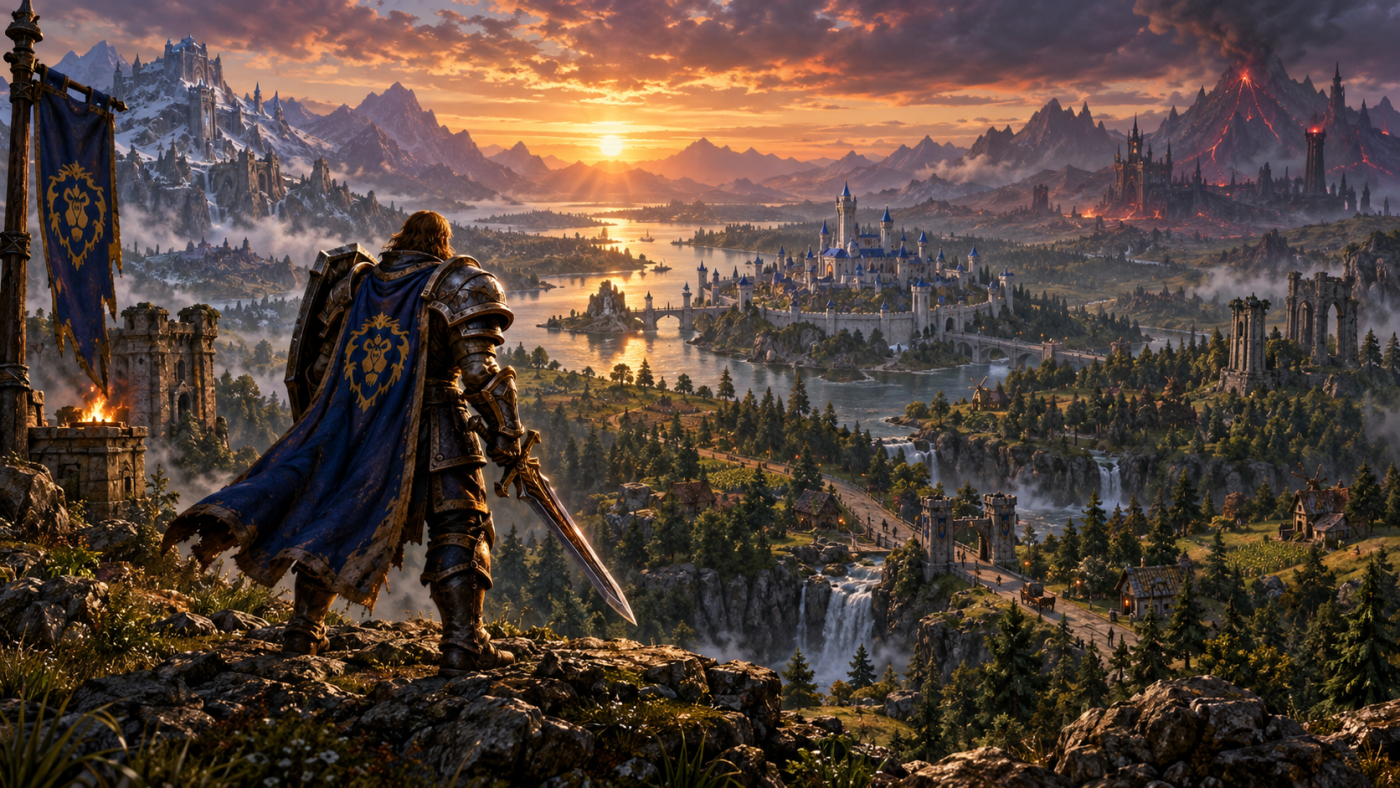
WoW Forever may look like Classic at first glance, but its graphics settings tell a different story. This is still Azeroth as you remember it, yet the engine now has higher-quality lighting, improved shadows, atmospheric effects, longer view distances, and plenty of smaller visual upgrades.
That extra detail comes with a price: Forever is considerably more demanding than standard Classic.
I tested the settings in crowded cities, raids, Battlegrounds, and world events — basically the places where an otherwise healthy FPS counter can suddenly fall off a cliff. My main test machine is a laptop with a mobile RTX 3060, 32 GB of DDR5 RAM, and a 12th-generation Intel CPU. I also do most modern gaming on a console, so these settings aren’t built around some ridiculous high-end PC.
Here’s the setup I’d use as a starting point.
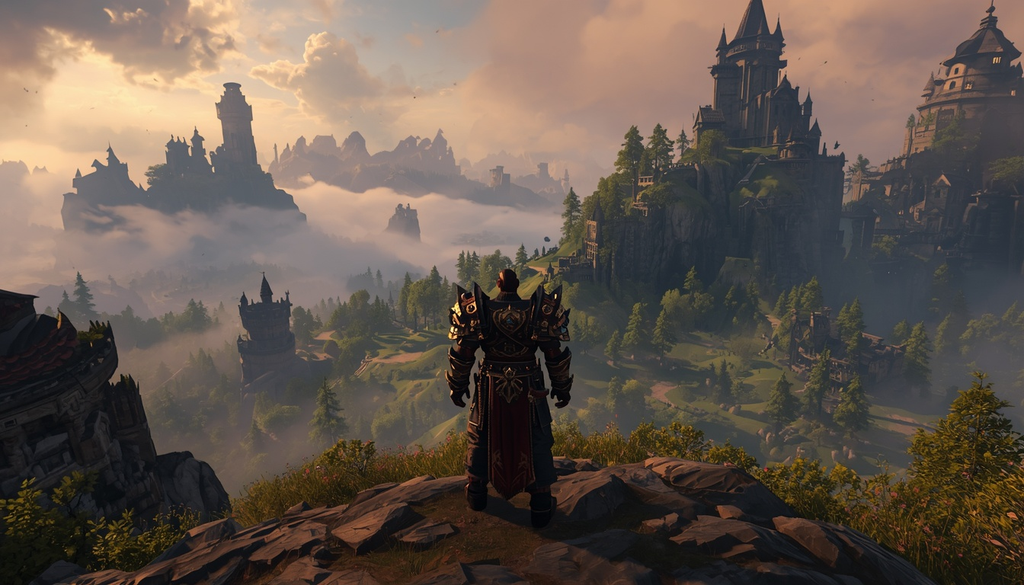
| Setting | Recommended Option | Why |
|---|---|---|
| Visual Preset | Enhanced | A good starting point; individual modern features can be disabled afterward |
| Character Models | HD | Better detail while retaining Classic animation |
| Display Mode | Fullscreen / Borderless | Fullscreen for maximum performance, Borderless for easier alt-tabbing |
| Resolution | Native | Keep your monitor’s native resolution whenever possible |
| Render Scale | 100% | Preserves native image quality |
| VSync | Off | Avoids additional input latency unless tearing bothers you |
| FPS Limit | Stable Target | Use 60, 90, 120, etc. — whatever your PC can maintain consistently |
| Texture Quality | High | Keep it high unless VRAM becomes a problem |
| View Distance | High | One of Forever’s more noticeable visual upgrades |
| Environment Detail | High | Keeps the world detailed without pushing every distant object to maximum |
| Ground Clutter | Medium | Enough grass and foliage without wasting too many frames |
| Shadow Quality | Low / Medium | One of the easiest settings to lower when performance drops |
| Liquid Detail | Medium | Keeps the upgraded water effects without a major performance hit |
| Lighting Quality | Medium / High | High looks better, but costs additional performance |
| Particle Density | Medium / High | Helps preserve important combat effects |
| Projected Textures | On | Ground-based mechanics are more important than a few extra FPS |
| Spell Density | Essential / Some | Cuts visual clutter while keeping important effects visible |
| SSAO / Ambient Occlusion | Low / Medium | Adds depth without providing a huge benefit at higher settings |
| Depth Effects | Low / Medium | Controls atmospheric and fog effects |
| Compute Effects | Medium | Lower it if large fights cause significant FPS drops |
| Anti-Aliasing | CMAA 2 | Plenty for modern resolutions without expensive AA |
| Ray Traced Shadows | Medium / Off | Fine for quieter content, but disable it for demanding raids |
With this configuration, I usually sit around 100–120 FPS. In particularly busy scenes, that can fall to roughly 70 FPS, which is still perfectly playable.
And yes, someone could probably argue that watching your FPS collapse during a raid is just another way to recreate the 2004 experience.
Classic or Enhanced Graphics?
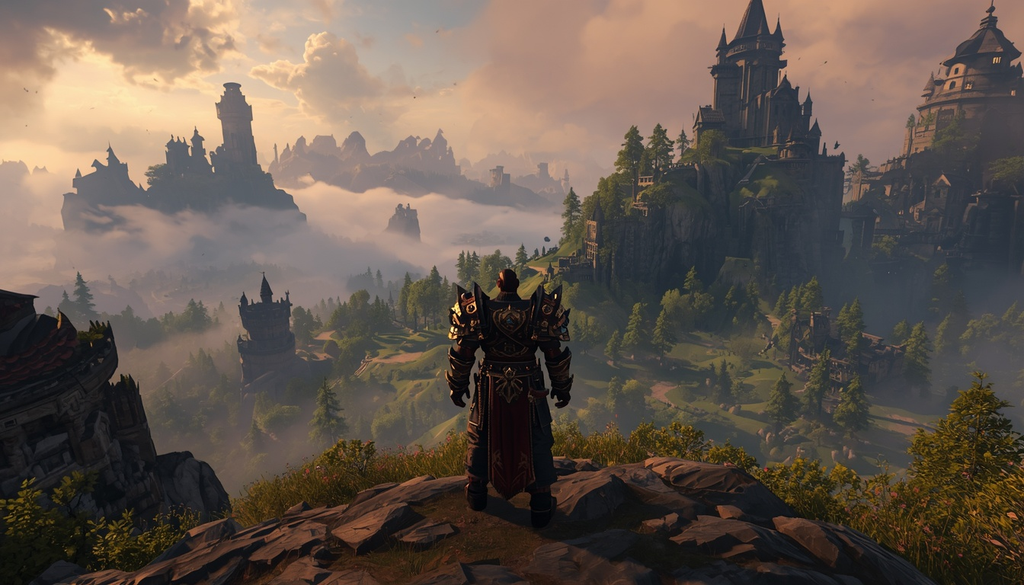
The first time you launch WoW Forever, you’ll be asked to choose between Classic and Enhanced graphics. These aren’t different servers, and the choice isn’t permanent. Think of them as preset bundles that determine which options are enabled when you start.
The Classic preset gives you:
- SD character models
- Quest POIs disabled
- Objective blobs disabled
- One Bag disabled
- Transmog disabled
Enhanced starts with:
- HD character models
- Quest POIs enabled
- Objective blobs enabled
- One Bag enabled
- Transmog enabled
You can change these settings individually afterward, so there’s no reason to treat the initial selection as a permanent commitment.
For most players, Enhanced is the more practical starting point. If you want HD models but don’t like objective blobs, disable the blobs. If you want the old-school presentation, switch the modern options off.
The important thing is that you’re not locked into either preset.
HD or SD Character Models?
The HD models have a relatively small impact on performance, so this is mostly a matter of taste.
I’d stick with HD unless you’re specifically chasing the original Vanilla appearance.
Forever’s HD models aren’t simply modern WoW models dropped into Classic Azeroth. The Classic animation sets have been restored, which lets the characters benefit from additional model detail without making them look exactly like Retail characters.
The setting also applies globally. Your character, NPCs, and other players all follow the same presentation choice.
View Distance
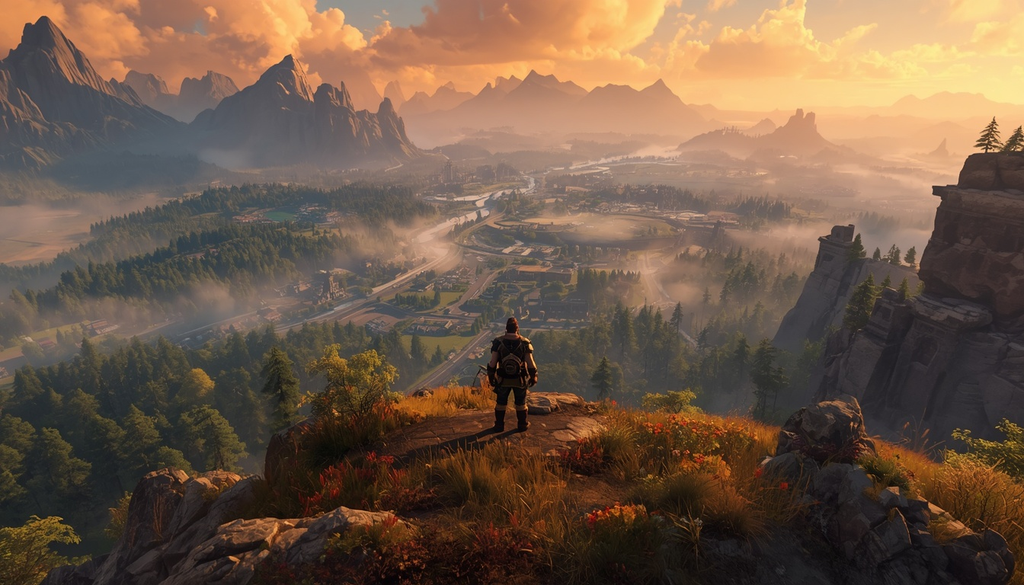
View Distance is one of the settings that makes Forever feel noticeably different from older versions of Classic.
The catch is that its impact varies depending on where you are. A lot of the original zones naturally hide distant areas behind mountains, buildings, walls, or other environmental features, so increasing the distance won’t have the same effect everywhere.
Still, Forever’s environmental upgrades are meant to make the old world feel larger and more connected. Setting View Distance to minimum works against that goal.
Medium is a good compromise, while High is the setting I’d use if your hardware can handle it.
Shadow Quality Is an Easy FPS Win
If performance starts dropping, shadows are one of the first places I’d look.
Forever’s lighting system does considerably more than the old Classic renderer. Put a busy town together with lots of foliage, multiple light sources, and dozens of players, and the GPU suddenly has a lot more work to do.
Low or Medium is usually enough.
There isn’t much point spending a huge amount of GPU power making every tree cast a perfect shadow while you’re busy trying not to get flattened by Onyxia.
Particle Density and Spell Density
Don’t simply drag every visual option to minimum in the name of FPS.
In an MMO, graphical effects aren’t just decoration. They communicate gameplay information.
You need to see:
- Ground AoEs
- Boss abilities
- Enemy casts
- PvP effects
- Other important combat mechanics
The trick is to remove unnecessary visual noise without hiding the effects that tell you where you should — or shouldn’t — be standing.
That becomes particularly important once the first Forever raids open on December 9.
What About Ray Tracing?
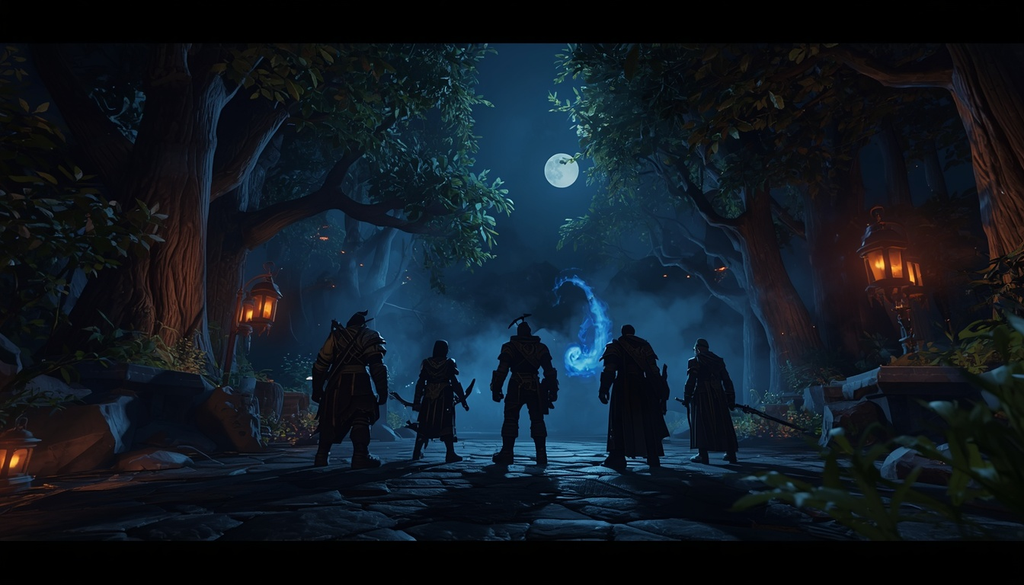
Ray tracing is one of those settings where the answer depends heavily on your hardware and what you’re doing.
Ray Traced Global Illumination can make Forever look significantly better, but budget and mid-range GPUs can take a serious hit in both VRAM usage and overall performance.
There’s another thing to remember about WoW: the game can put substantial pressure on the CPU because of all the players, NPCs, and other activity being calculated in its open world. That means simply throwing more GPU power at the problem won’t necessarily solve every performance issue.
I’d start Global Illumination around Medium and see how your system behaves.
For raids, though, I’d turn ray tracing off.
How to Get More FPS in WoW Forever
If Forever isn’t running well, don’t immediately throw the graphics back to the 2004 look.
The whole point of the updated renderer is to make Classic Azeroth look better while retaining its original visual identity. Instead, lower the expensive settings one at a time.
I’d make the changes in this order:
- Disable Ray Traced Shadows
- Lower Shadow Quality
- Lower Lighting / Ambient Occlusion
- Reduce Ground Clutter
- Reduce Environment Detail
- Lower Depth / Atmospheric Effects
- Reduce Liquid Detail
- Lower View Distance
- Reduce Spell Density
- Try SD Character Models
This gives you a much better chance of keeping Forever’s upgraded visuals while recovering performance.
Only after you’ve worked through those options would I consider switching the entire setup to Classic graphics.
And don’t test your PC by staring at an empty field.
If you want a realistic picture of how the game performs, try:
- Crowded cities
- Battlegrounds
- Raids
- World events
- Large groups of players
Getting 180 FPS while murdering boars doesn’t tell you much about how your PC will behave in Stormwind with a pile of players around you.
Spend some time in a major city instead.
There’s also a useful troubleshooting clue here: if your FPS stays low even after reducing the resolution, your GPU may not be the problem. A CPU bottleneck can keep performance down regardless of how low you push the image quality.
At that point, your hardware may simply be ready for an upgrade.
WoW Forever System Requirements
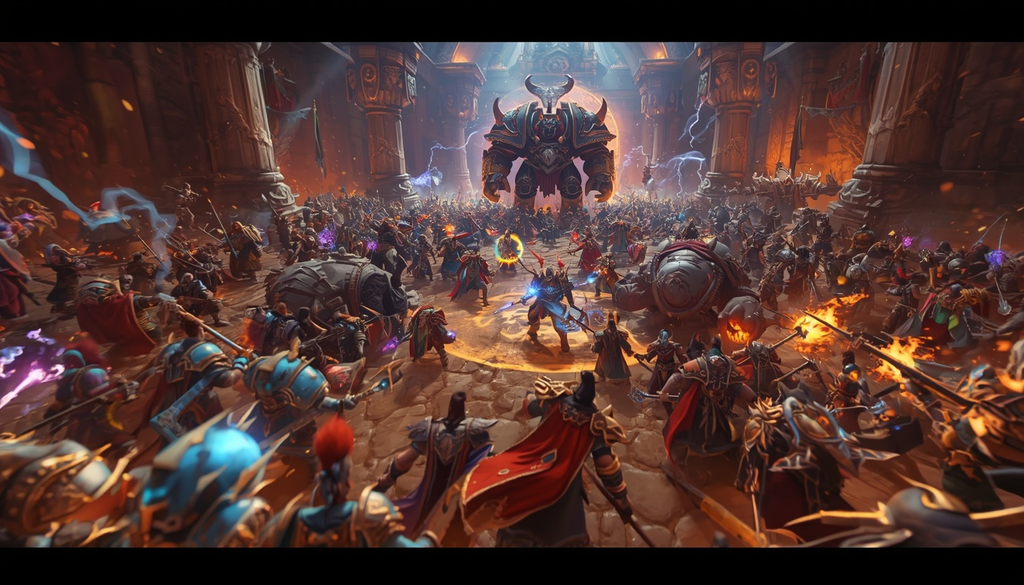
WoW Forever is considerably more demanding than Classic Era.
The listed requirements are much closer to modern WoW than what players normally expect from a Classic-era game.
| Component | Minimum | Recommended |
|---|---|---|
| OS | Windows 10 64-bit | Windows 11 |
| CPU | 6 cores, 4.0 GHz boost, Coffee Lake / Ryzen Zen 2 | 8 performance cores, 5.2 GHz boost, Core Ultra Series 2 / Ryzen Zen 5 |
| GPU | DX12, 4 GB, GTX 10 Series / RDNA 1 / Intel Xe2-LPG | DX12, 8 GB, RTX 40 Series / RDNA 3 / Intel Arc B-Series |
| RAM | 8 GB | 16 GB |
| Storage | 128 GB SSD | 128 GB SSD |
| Internet | Broadband | Broadband |
| Resolution | 1280×720 minimum | 1280×720 minimum |
The recommended RTX 40-series GPU requirement looks surprisingly high for what is, visually speaking, still Classic Azeroth.
The minimum requirement is much less intimidating: a 4 GB GTX 10-series-class GPU. That’s a dramatically lower hardware tier and suggests that there should be plenty of systems capable of running the game once the more demanding visual features are reduced.
The CPU requirement deserves particular attention.
WoW has always benefited heavily from strong single-thread performance, and Forever’s more demanding world doesn’t change that. If your processor is close to the minimum specification, expect the possibility of noticeable stuttering, especially when there are lots of players and NPCs around.
And one final piece of advice: don’t install Forever on an HDD.
The game’s newer asset streaming system is likely to have a much harder time on mechanical storage. A 128 GB SSD is listed for both the minimum and recommended configurations, so an SSD should be considered part of the baseline setup rather than an optional luxury.